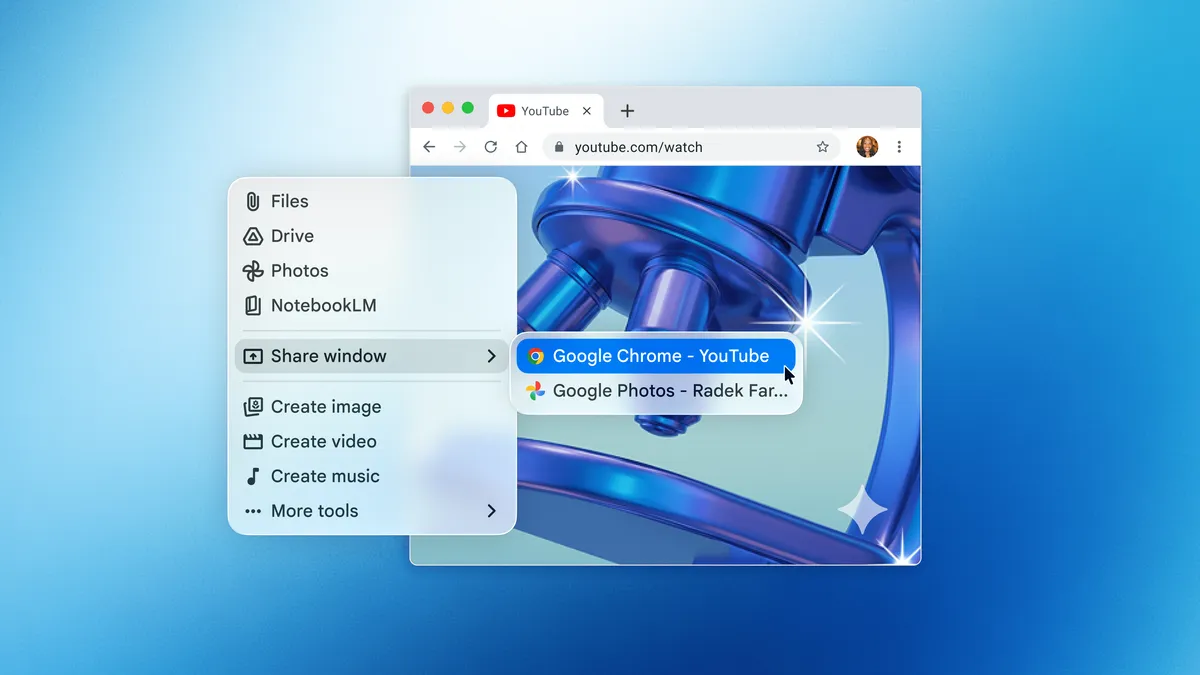
If you've ever wanted an AI assistant that doesn't require you to abandon what you're working on just to ask a quick question, Google might have your answer. The company has launched a dedicated Gemini app for Mac, and the headline feature is a floating chat bubble you can pull up at any time with a simple keyboard shortcut - Option + Space.
Why this one feels different
Most AI tools still live in a browser tab or a separate app window, which means interrupting your flow every time you need help. Gemini's Mac app takes a different approach by sitting quietly in the background until you need it. That floating bubble design means you can ask a question, get an answer, and get back to whatever you were doing without losing your place.

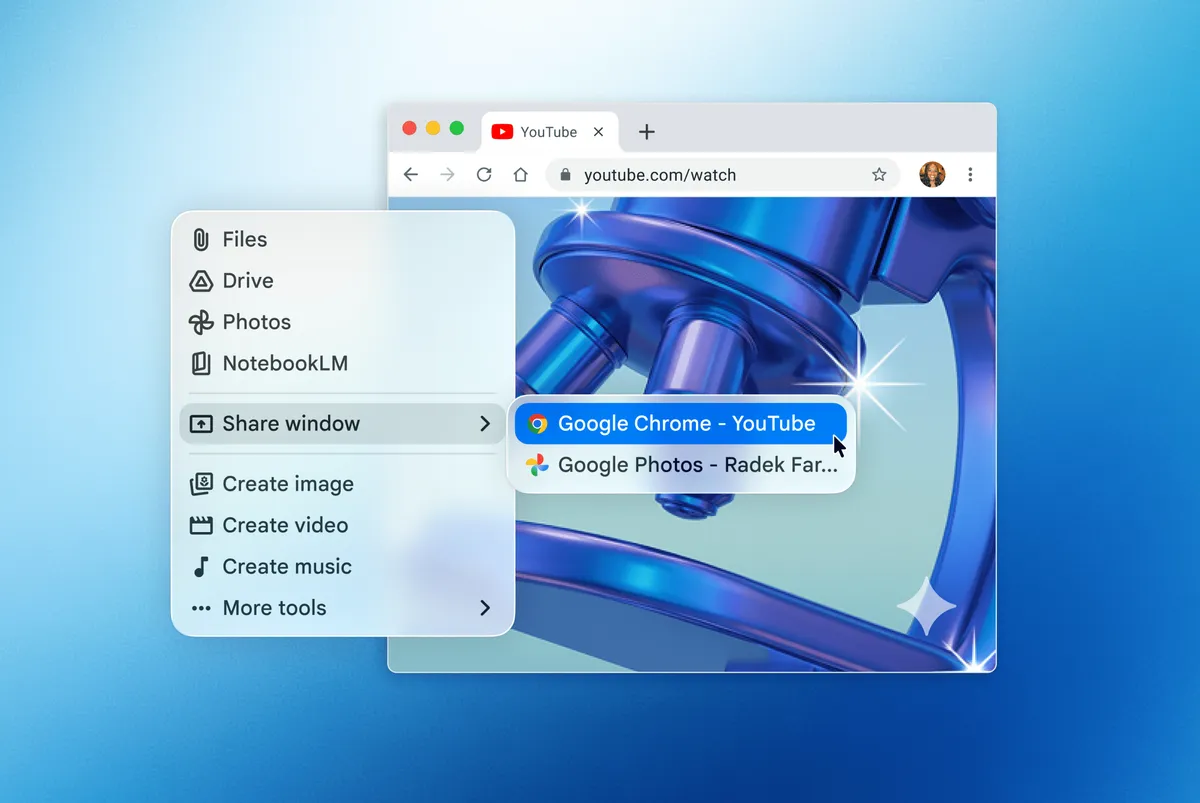
The more interesting capability, though, is window sharing. You can give Gemini permission to see what's on your screen, and the assistant will pull context from whatever you're looking at to help you out. Reviewing a contract, editing a spreadsheet, or working through a complicated email thread? Gemini can look at the same thing you're looking at and respond accordingly. According to The Verge, you'll need to grant explicit system access before any of that kicks in, which is a reasonable privacy guardrail.
The bigger picture
This launch fits neatly into a broader pattern we're seeing across the tech industry - AI moving from something you visit to something that's woven into your everyday workflow. Apple has been quietly building similar ambient intelligence features into macOS, and tools like ChatGPT already have desktop apps for both Mac and Windows. Google joining that space with Gemini signals that the race for desktop AI presence is very much on.
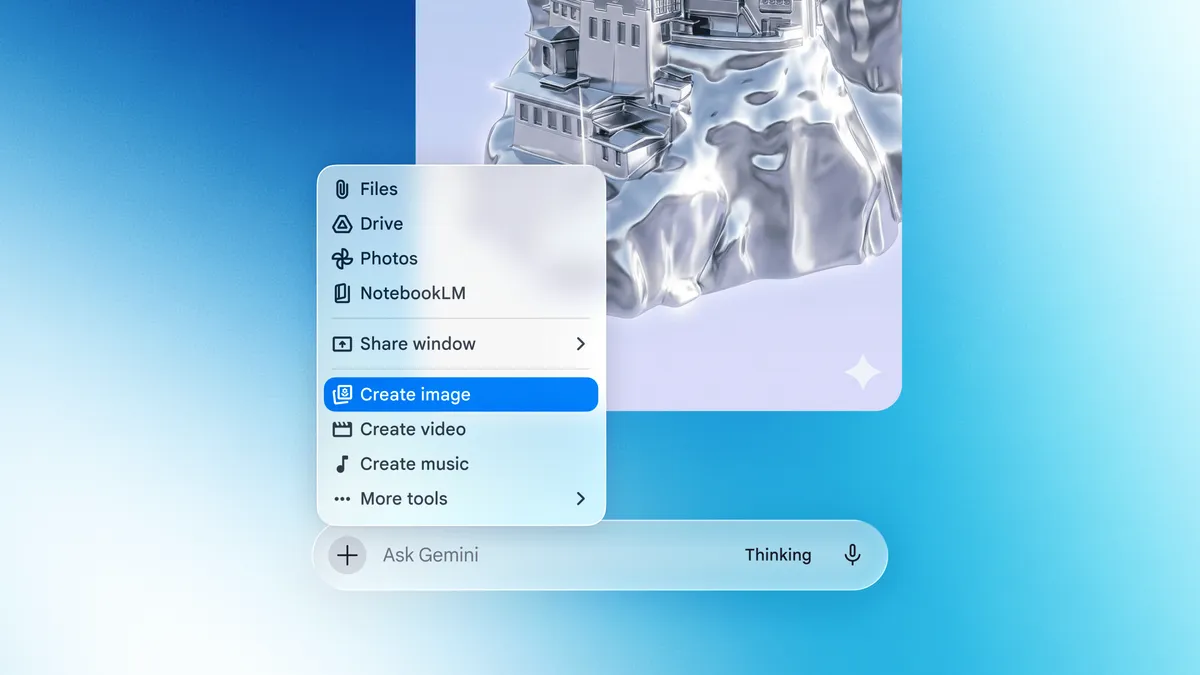
For Mac users who already live inside Google's ecosystem - Docs, Gmail, Drive, the whole suite - a native desktop app that can interact with your screen in real time is a genuinely useful addition. It's less about flashy new AI capabilities and more about removing friction from the ones that already exist.
Whether Gemini becomes a tool you actually reach for every day will depend on how reliably it understands context and how natural that shortcut feels in practice. But the setup here is smart. An AI assistant that stays out of your way until you need it, then shows up right where you are - that's the kind of design that tends to stick.