So you finally took the plunge and got a Mac. Welcome to the other side. Whether you were lured in by the sleek hardware, the battery life promises, or just years of Windows frustration finally reaching a tipping point, you're probably sitting there right now wondering why nothing works quite the way you expect it to.
Don't worry - that feeling doesn't last long. But there are a few things worth knowing upfront that will save you a lot of unnecessary Googling, according to a helpful guide from Lifehacker.
The keyboard is going to feel weird at first
The biggest mental shift? The Command key does a lot of the heavy lifting that Control did on Windows. Copy and paste, opening new tabs, quitting apps - it's all Command now. Your muscle memory will fight you on this for about a week, and then it clicks. Give it time.
Closing a window doesn't quit the app
This one trips up almost every switcher. On a Mac, hitting that red X button closes the window, but the application keeps running in the background. You'll notice the little dot under app icons in the Dock indicating something is still open. To actually quit, you need to press Command + Q, or right-click the icon and select Quit. It's a different philosophy - not wrong, just different.
The file system works differently than you're used to
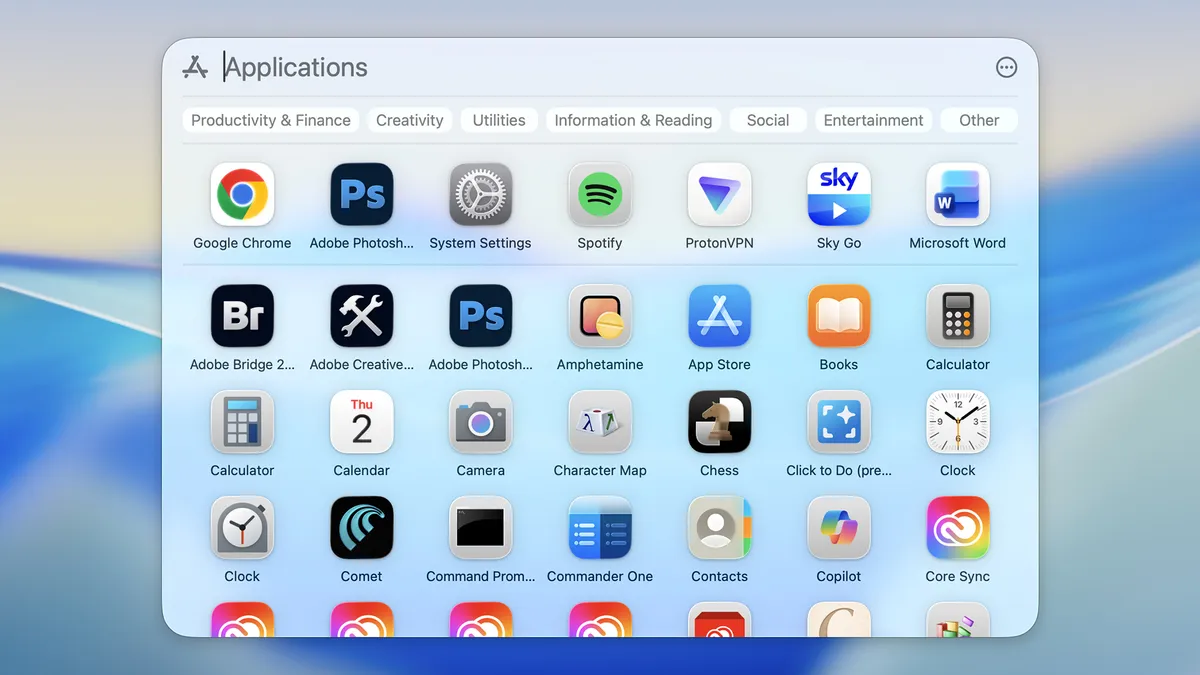
Finder is macOS's version of Windows Explorer, and while it gets the job done, it takes some getting used to. Things like cut-and-paste for files work differently (you copy first, then use Command + Option + V to move), and the folder hierarchy has its own logic. Spend some time poking around Finder settings early on and you'll feel much more at home.
Built-in apps are actually worth using
A lot of Windows users arrive on Mac with a bag full of third-party apps they rely on, only to find that Apple's built-in options - like Preview for PDFs, Photos, and even the Notes app - are genuinely good. It's worth giving them a real shot before defaulting to what you already know.
Spotlight is your new best friend
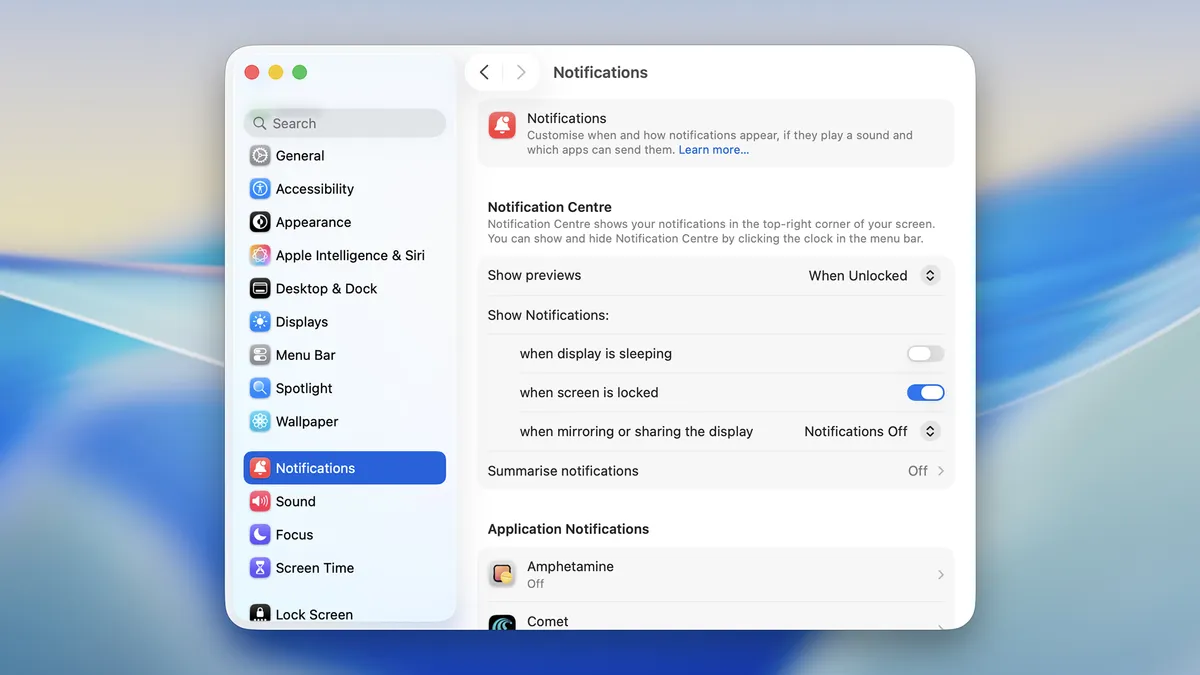
Hit Command + Space and a search bar appears. You can use it to launch apps, do quick calculations, look up definitions, find files, and more. Think of it as the search bar in Windows Start menu, but faster and more powerful. Once you build the habit of reaching for Spotlight, your whole workflow speeds up.
The switch from Windows to macOS has a reputation for being harder than it actually is. Most people find their footing within a couple of weeks. The key is not expecting it to work like Windows - it's a different system with its own logic, and once that clicks, it genuinely gets enjoyable to use.